Overview
What UploadEditor is
UploadEditor is a browser extension and web portal that helps users edit files during upload. Instead of downloading a file, changing it, and uploading it again, users can apply the right changes inside the upload flow.
Extension overview
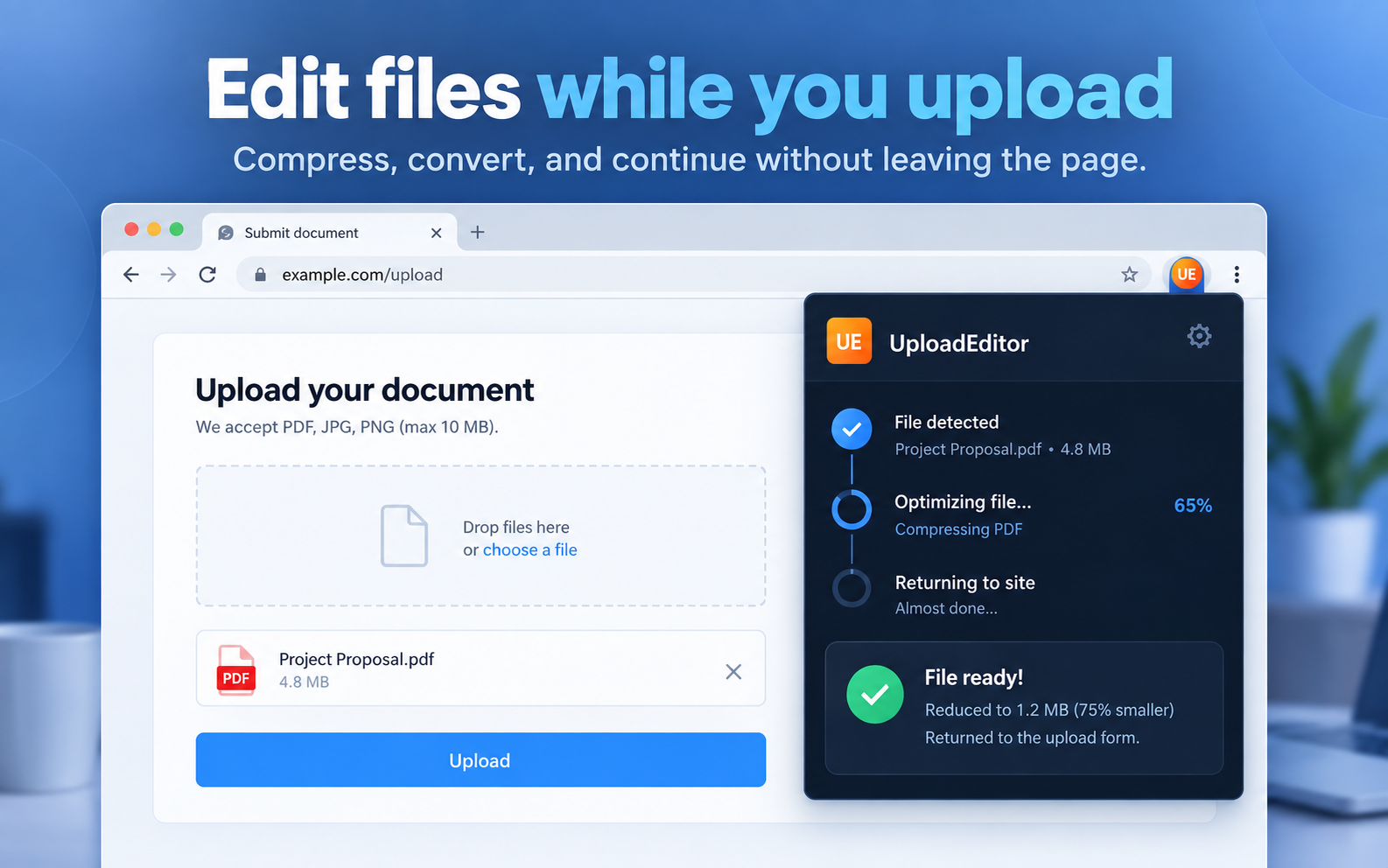
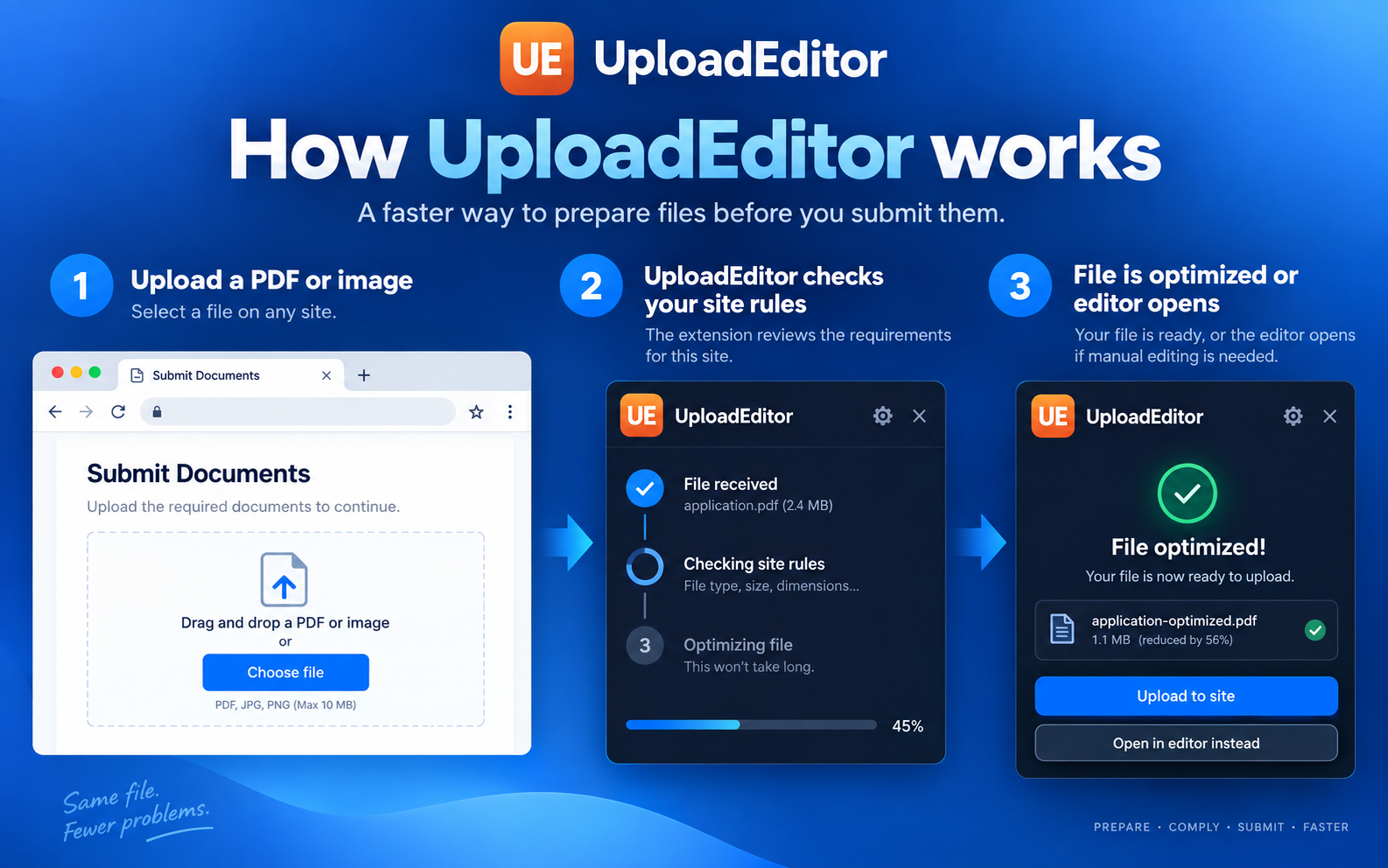
The extension watches supported upload fields, checks your active rules, and automatically processes matching files. If no rule matches, the editor opens so you can continue manually.
- Rules are managed at the account level and apply to every key under that account.
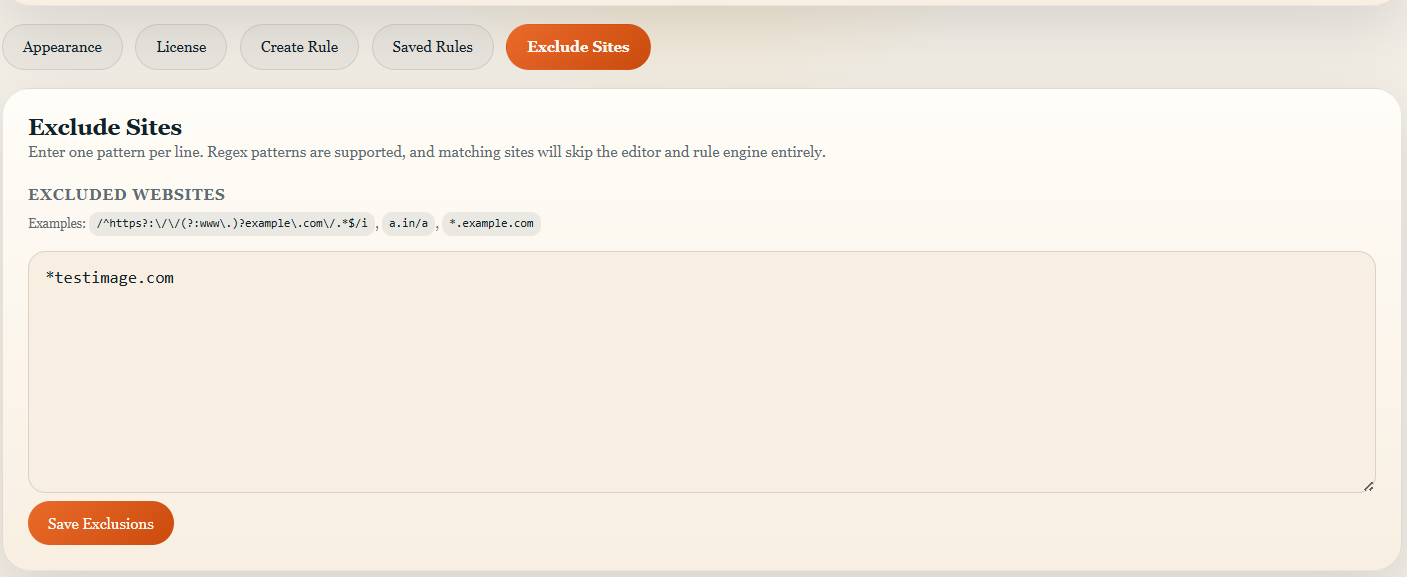
- Exclude Sites patterns can stop the popup from opening on websites you do not want to touch.
- Premium features stay locked until a valid license key is active.
Who it is for
Anyone who uploads images or PDFs and wants a simpler, faster workflow.
What it includes
A landing page, account system, dashboard, Chrome extension, premium rules, and site exclusions.
Accounts
How to create an account
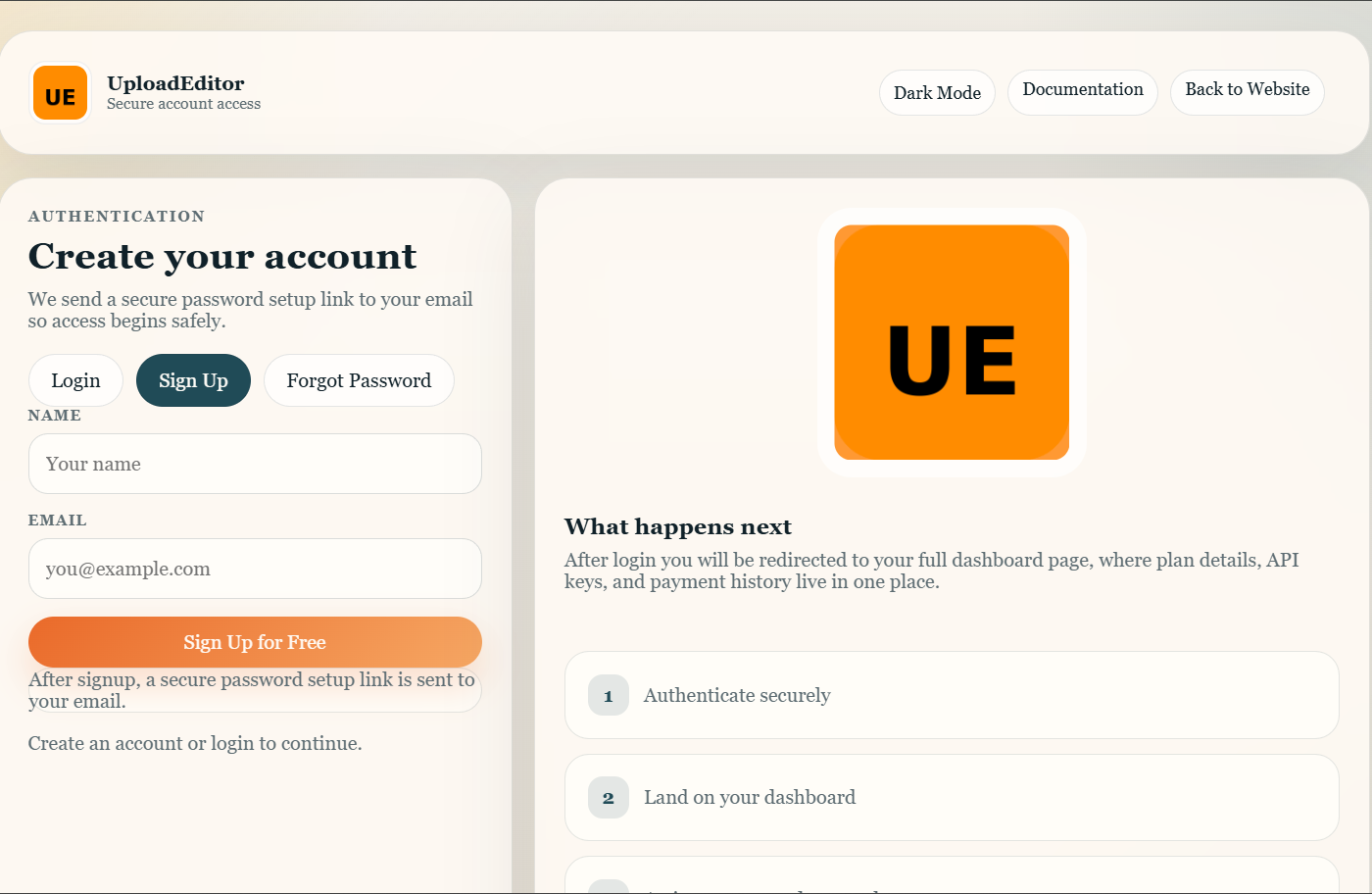
- Open the website and click Sign Up.
- Enter your name and email address.
- Check your email for the secure password setup link.
- Open the link, create your password, and complete activation.
- Log in and land on the dashboard.
Your account uses email-based setup so password creation stays secure and tied to the correct email address.
API Keys
How to generate and use the API key
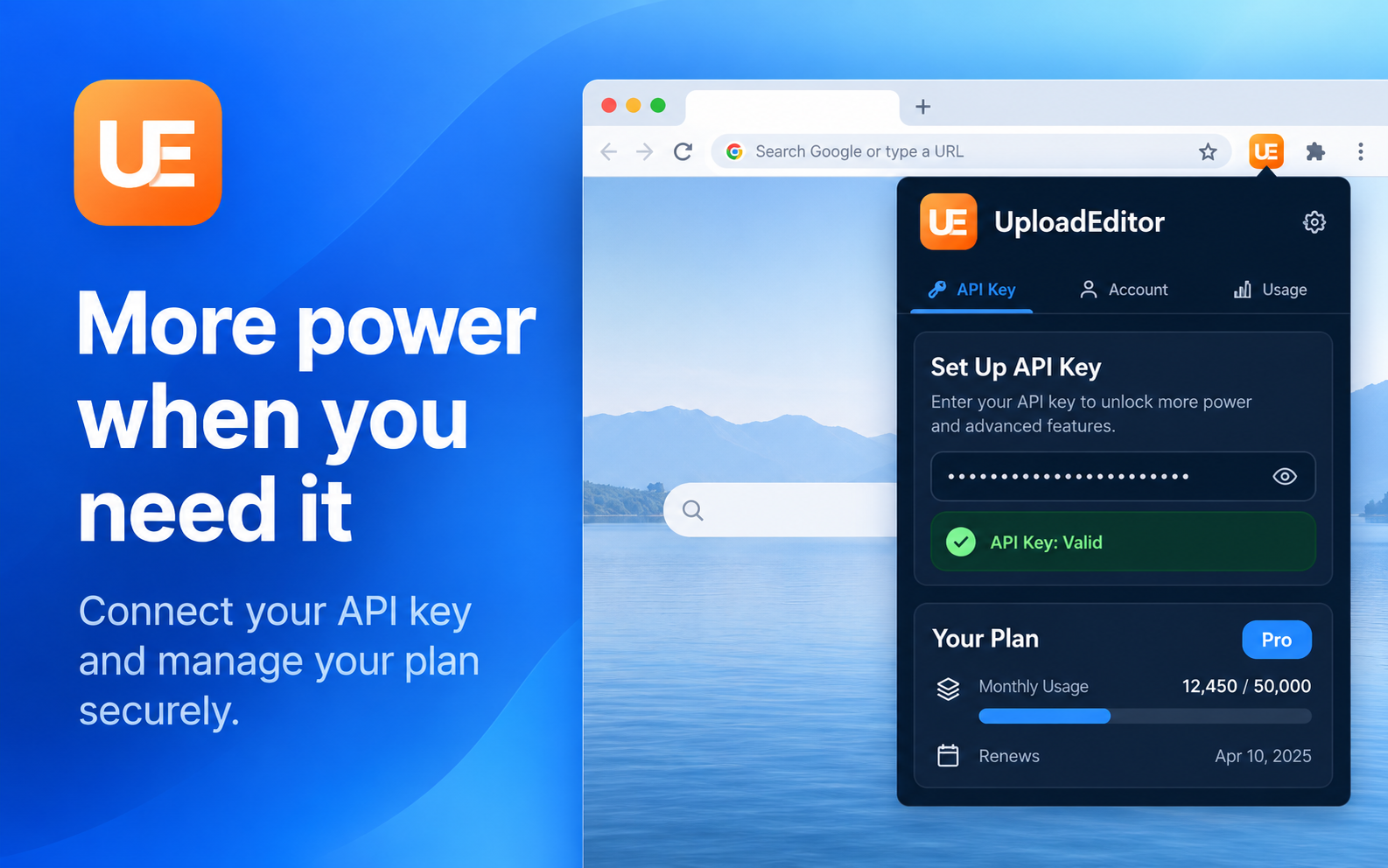
After login, open Subscription in the dashboard. When you start a trial or buy a plan, the API key is generated for your account and shown in the license area.
Steps
- Choose a plan from the dashboard.
- Accept the terms and complete activation or payment.
- Copy the API key from your dashboard.
- Paste it into the extension License tab.
- Validate it to unlock premium features.
Installation
How to download and install the Chrome extension
Use the Download Chrome Extension button to open the Chrome Web Store. Install the extension from there, then open Chrome Extensions and use it.
Using the Extension
How to use the extension
- Open a supported upload field on a website.
- Select one file to upload.
- If the file matches a saved rule, UploadEditor processes it automatically.
- If no rule matches, review the file in the editor, make changes, and continue the upload.
- If the site is excluded, the extension does nothing and the upload proceeds normally.
If you choose more than one file at once, the editor will not open and a toast will tell you that only one file can be processed at a time.
How It Works
How the extension works behind the scenes
1. Detect the upload
The extension listens for file input and drag-and-drop events.
2. Check the site rules
It loads your account-level rules and Exclude Sites configuration from the server.
3. Decide whether to open the editor
If a saved rule matches and the site is not excluded, the configured action runs automatically. When no rule matches, the editor opens for manual processing.
Settings
How to use extension settings
Open the extension settings page to manage the theme, license key, saved rules, and site exclusions. Each tab is separated so the setup stays simple.
Appearance
Choose dark, light, or system theme.
License
Validate your API key and unlock premium features.
Rules
Create, edit, enable, or disable rules from the saved rules area.
Rules
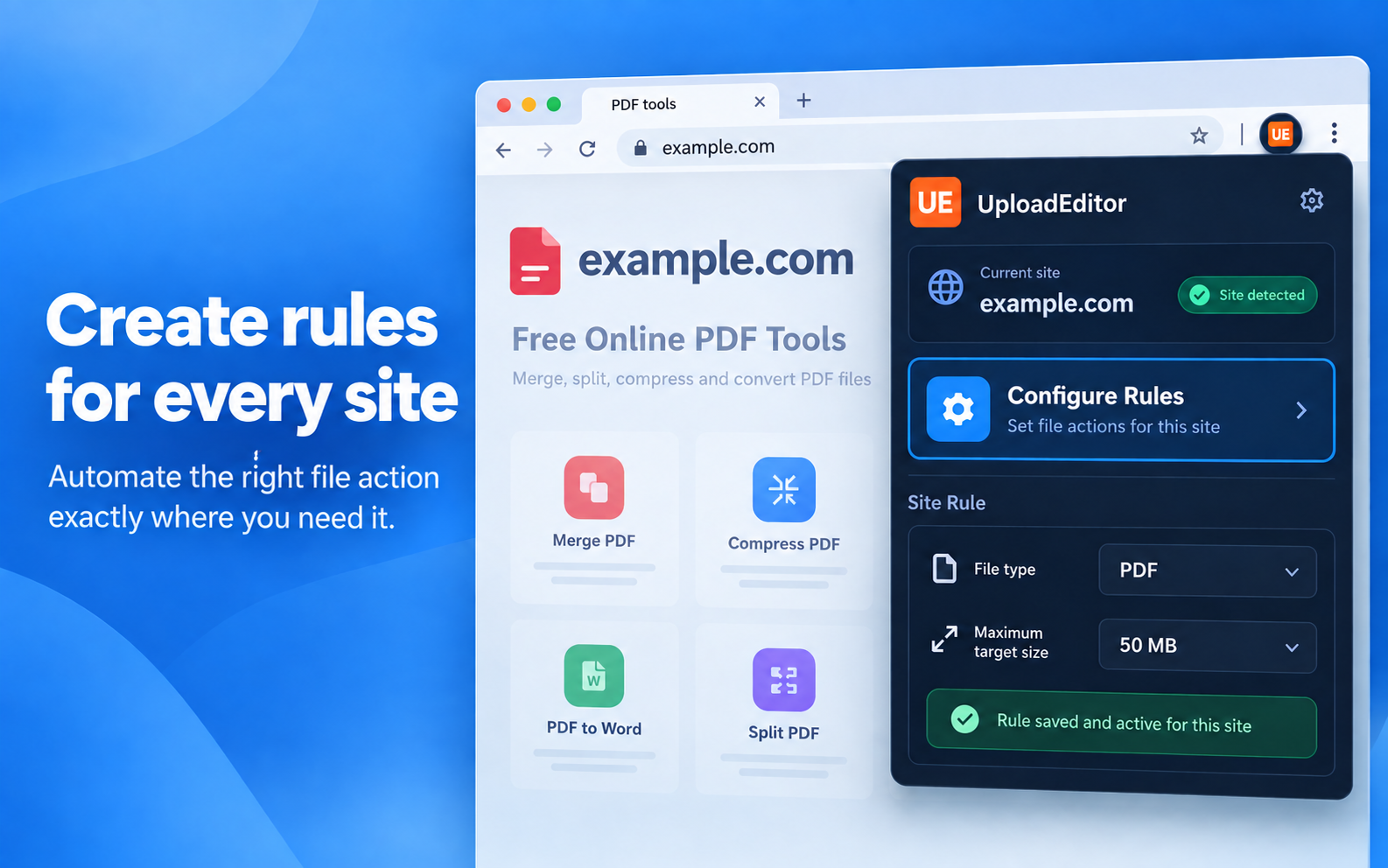
How to configure rules
Rules are account-level and apply to all API keys under the same account. This means you only configure them once and every key receives the same behavior.
Recommended structure
- Give the rule a clear name.
- Choose the website pattern or leave it open for all websites.
- Select the file type and file size limits if needed.
- Pick the action: review or automatic processing.
- Save the rule and test it on a single file.
Block a Website
How to stop UploadEditor on a specific website
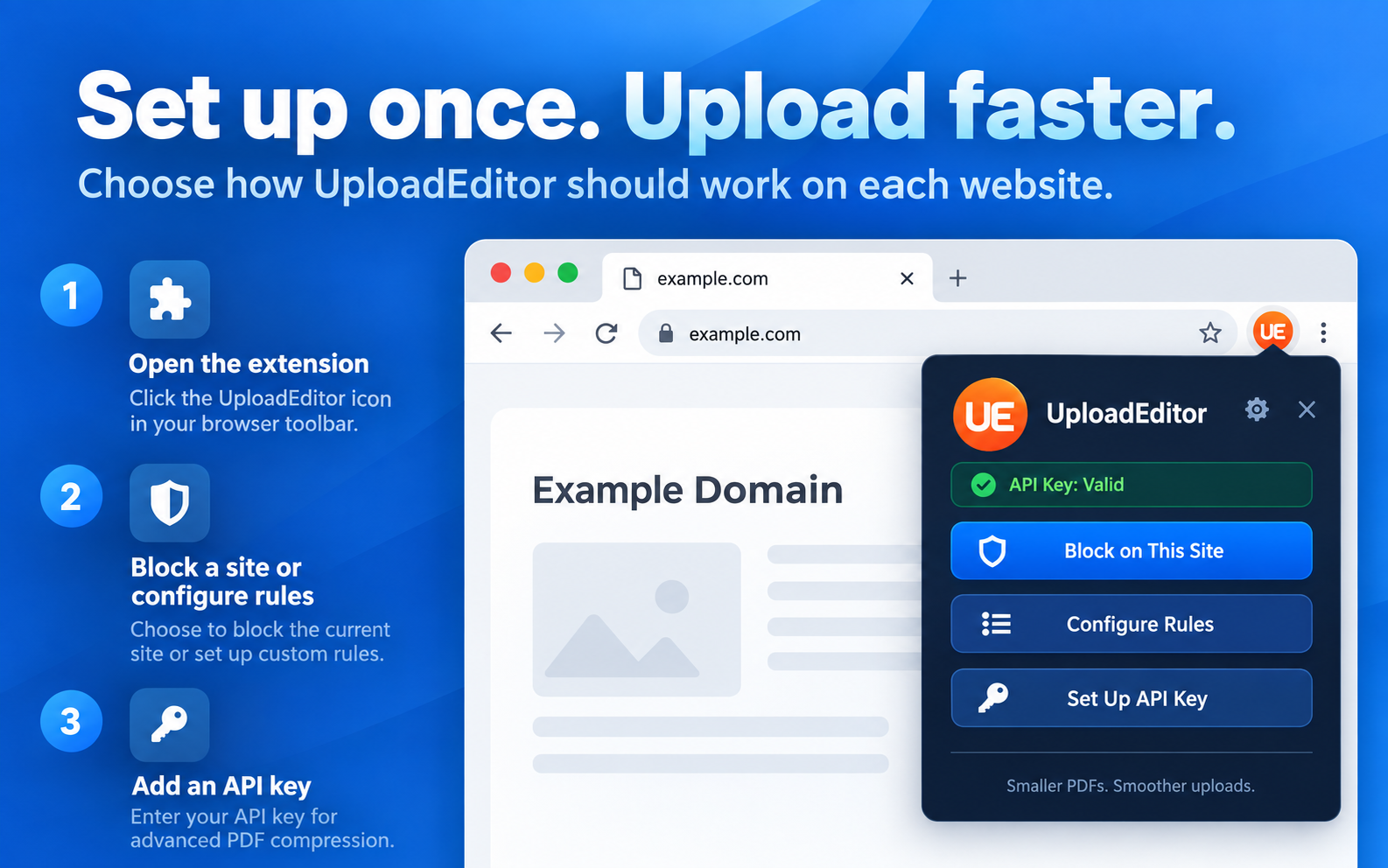
Use Block on This Site when you want a website to keep its normal upload behavior. UploadEditor will not open its popup, apply rules, or process PDF and image uploads on that site.
Block the current website
- Open the website where you want to stop UploadEditor.
- Click the UploadEditor icon in the Chrome toolbar.
- Click Block on This Site.
- Confirm that the status changes to Site blocked.
- Upload files normally. The extension will stay out of the upload flow.
Turn it back on
Open the extension on the blocked website and click the same button again. The site becomes active, and its saved rules can run again.
Dashboard
Other important details
What you can do in the dashboard
- View selected plans and API keys.
- Review payment history.
- Submit support requests.
- Upgrade or refresh active keys when needed.
Useful behavior to remember
- The session expires automatically after 60 minutes.
- Multi-file uploads are not sent to the editor.
- Excluded sites bypass UploadEditor completely.